 Chrome Extension
Create · A practical guide
How to convert MP4 to GIF in your browser
Choose the moment, frame the action, and find the right settings for your first video-to-GIF conversion.
To convert an MP4 to GIF, open the video in GIF Downloader, select a short time range, choose the output width and frame rate, and select Create GIF. Your local file stays on your device while the conversion runs in the browser.
A useful GIF begins with a clear moment: a reaction, a small movement, or a short demonstration. This guide uses an original four-second coastal animation so you can try the controls with the same source.
Before you start
Have a local MP4 ready, or download our example MP4. An MP4 encoded with H.264 is a useful choice for browser compatibility. The MP4 extension alone does not identify the video codec, so some MP4 files may still be unsupported on a particular device.
Local files can be up to 1 GB, but actual processing depends on your browser and available memory. Both your selected source range and the GIF’s playback duration must fit within 30 seconds. The export also has a 360-frame limit.
If your source is a public X post rather than a file, follow the Twitter / X download guide to load it first. Local conversion does not upload your video; retrieving social media does involve the server and a download provider.
Convert your video in five steps
- Open the source. Select Open a file or drop a video into the GIF editor. Wait for its preview and timeline to appear.
- Choose the time range. Set Start and End, or adjust the timeline handles. Begin with two to four seconds around the action. Watch the transition from the last moment back to the first; a natural transition makes the loop easier to follow.
- Frame the subject. Keep Original ratio to preserve the full frame, or choose a centered 1:1, 9:16, or 16:9 crop. The blue outline shows the area that will remain. Cropping is centered; it is not a movable crop box.
- Set width and frame rate. For a first attempt, try 480 px, 12 fps, and 1× speed. If the source is narrower, use a smaller available width. You can set a file size limit now or inspect the first output before deciding.
- Create and inspect the GIF. Select Create GIF, then check the resulting animation and file size. Save with Download GIF if automatic download is off or does not start. If necessary, change one setting and create another version.
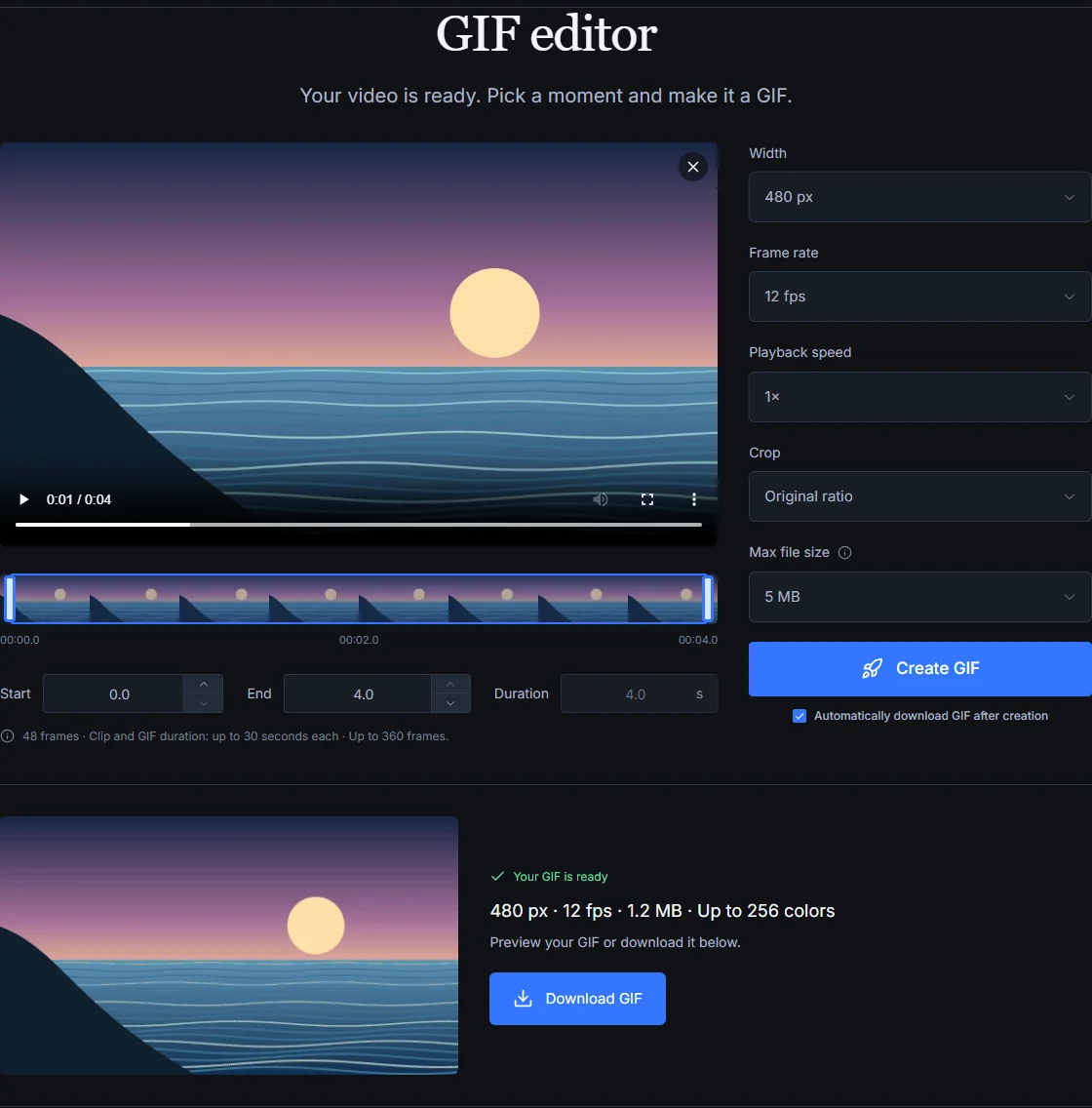
Choose settings for the result you need
Width: keep enough detail for the viewing size
A 320 px GIF can suit a small reaction image. Try 480 or 640 px when the subject needs more room. Larger dimensions usually cost more bytes and processing time. The editor offers widths up to 960 px, but it will not enlarge an export beyond the cropped source width.
Frame rate: balance motion and file size
Frame rate controls how many source frames are sampled per second. A 10 or 12 fps starting point may be enough for simple motion; 20 or 24 fps can preserve more steps in faster action. Higher frame rates also use the 360-frame budget sooner. Compare the motion at its intended display size before increasing the setting.
Playback speed: change the pace, not the selection
The available speeds are 0.5×, 1×, 1.5×, and 2×. Speed changes the timing of the sampled frames, not the source range or the number of frames. A four-second selection at 0.5× plays for about eight seconds. Do not use faster playback as your main file-size adjustment: it does not remove frames.
File size: choose a target when you have a limit
Max file size offers 1, 2, 5, 10, and 15 MB targets. The tool may reduce color detail, width, and eventually frame rate to try to fit. A target is not a promise that every clip can fit. For a comparison and a recovery plan when it does not, read how to reduce GIF file size.
Try the same clip at three settings
These are actual exports of the four-second example video, using the original aspect ratio, 1× speed, and no file size limit. Play each result to compare the tradeoff. The sizes belong to this illustration; footage with different motion and detail will produce different results.
| Export | Dimensions | Frame rate | File size |
|---|---|---|---|
| detailed | 960 × 540 | 24 fps | 7.01 MB |
| balanced | 480 × 270 | 12 fps | 1.30 MB |
| compact | 320 × 180 | 10 fps | 0.63 MB |
To reproduce an export, save the source MP4, open it in the tool, set Start to 0 and End to 4, then use the width and frame rate shown. GIF frame timing is rounded, so playback duration can differ slightly from the selected video duration.
Common questions
Why does my GIF have no sound?
GIF is an image format without an audio track. Keep the MP4 when you need sound. GIF settings affect the exported animation, not your original local video.
Why is the GIF bigger than the MP4?
Video compression and GIF encoding work differently. A short MP4 can become a much larger GIF, especially at a large width or high frame rate. Shorten the selected moment and reduce output dimensions first. Increasing playback speed alone does not reduce the frame count.
Can I edit an existing GIF too?
Yes. Open a local GIF and use the same range and output controls. Input GIFs must also fit the 30-second, 360-frame, and browser decoding-memory limits. Transparent areas are exported with a white background, so this workflow is not suitable when you need to preserve transparency.
Put the guide into practice.
Open a file or paste a supported public post link. No account needed.
Open GIF Downloader →