 Chrome Extension
Optimize · A practical guide
How to reduce GIF file size below 5 MB
Keep the moment and lose the extra bytes. Compare real exports and learn what to adjust when a GIF is too big.
Already have a GIF? Open the GIF compressor to reduce its file size while preserving transparency, animation duration, and loop count. Compare the result with your original before downloading.
To make a GIF smaller, keep a shorter moment, reduce the output width, and lower the frame rate if the motion still looks good. In GIF Downloader, you can also select 5 MB under Max file size and let the tool try smaller export settings.
The useful question is which detail your GIF needs to keep. A quick reaction can often lose extra seconds or a wide background. A demonstration may need enough pixels to keep its subject clear. Start with that purpose before turning every setting down.
Why GIFs get large
Longer animations contain more frames. Wider output contains more pixels per frame. Higher frame rates add more samples of the movement. Fine textures, moving backgrounds, and complex colors can also make compression harder.
A small MP4 does not guarantee a small GIF. Video and GIF use different compression methods, and a GIF can be larger than the source video. Renaming a file or changing its playback speed does not solve that problem.
These tradeoffs are also described in EZGIF’s GIF optimization guide, which covers reducing colors, dropping frames, resizing, and shortening an animation. Here we will apply the controls available in GIF Downloader.
Make your GIF smaller, in this order
- Remove time you do not need. Set Start and End around the essential action. Cutting a long pause or the lead-in to a reaction reduces the number of frames without making the remaining picture smaller.
- Reduce width. Try 480 px instead of 960 px, then 320 px if the subject remains clear. At the same aspect ratio, halving the width reduces the pixel area to one quarter. The final file-size reduction will vary with the content and encoding.
- Check the crop. A centered crop can focus attention on the subject, but inspect the blue preview outline before exporting. Cropping alone does not guarantee a smaller file: at a fixed output width, a taller crop may produce more pixels. Use crop for framing and width for size control.
- Lower frame rate if needed. Try 12 or 10 fps, and compare the motion. Fast action may need more frames to remain readable. A jerky animation is not a useful tradeoff just because it is smaller.
- Set a size target and export. Choose 5 MB under Max file size, select Create GIF, and inspect both the resulting size and appearance. Save the result only after checking it meets your needs.
When starting from a video, follow the MP4-to-GIF walkthrough. You can also open an existing GIF, subject to the input frame, duration, and memory limits. If you still have the source video, use it to avoid repeatedly re-encoding an already reduced GIF.
One clip, three real exports
We created an original four-second coastal animation and exported it with the settings below. All three runs use the same time range, original aspect ratio, 1× speed, and No limit. That keeps the width and frame-rate changes visible without an automatic size target changing the settings further.
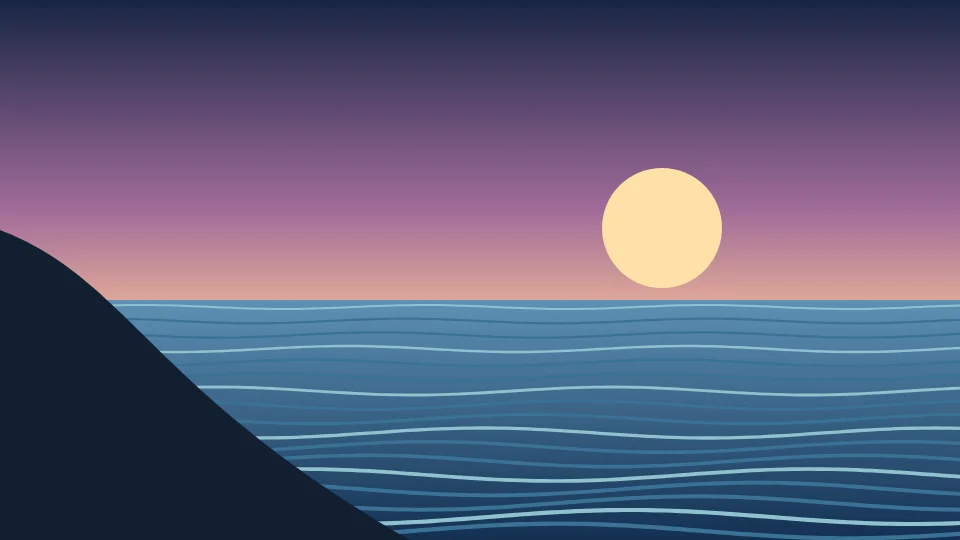
| Export | Dimensions | Frame rate | File size |
|---|---|---|---|
| detailed | 960 × 540 | 24 fps | 7.01 MB |
| balanced | 480 × 270 | 12 fps | 1.30 MB |
| compact | 320 × 180 | 10 fps | 0.63 MB |
The detailed export is 7.01 MB. Selecting 480 px and 12 fps brings this same clip to 1.30 MB, below a 5 MB ceiling, while the 320 px / 10 fps version is 0.63 MB. No automatic file size adjustment was needed for the two smaller versions.
These measurements show one source, not a universal compression ratio. The illustration has broad areas of color; a busy camera recording may need substantially more space. Play the results and decide how much detail and motion your own use requires.
What the 5 MB limit actually does
The tool first tries your chosen settings. If the output is too large, it tries reduced color counts and widths, followed by lower frame rates if needed. A successful export can therefore have different dimensions or frame rate from your starting settings. Check the details shown beneath the finished preview.
If none of the available attempts fits, the page reports that the smallest result is still above the limit. It keeps that result available to inspect or download, but it is not a successful under-limit export. Shorten the range or explicitly choose a smaller width and try again. If your destination allows a larger file, you can instead raise the target.
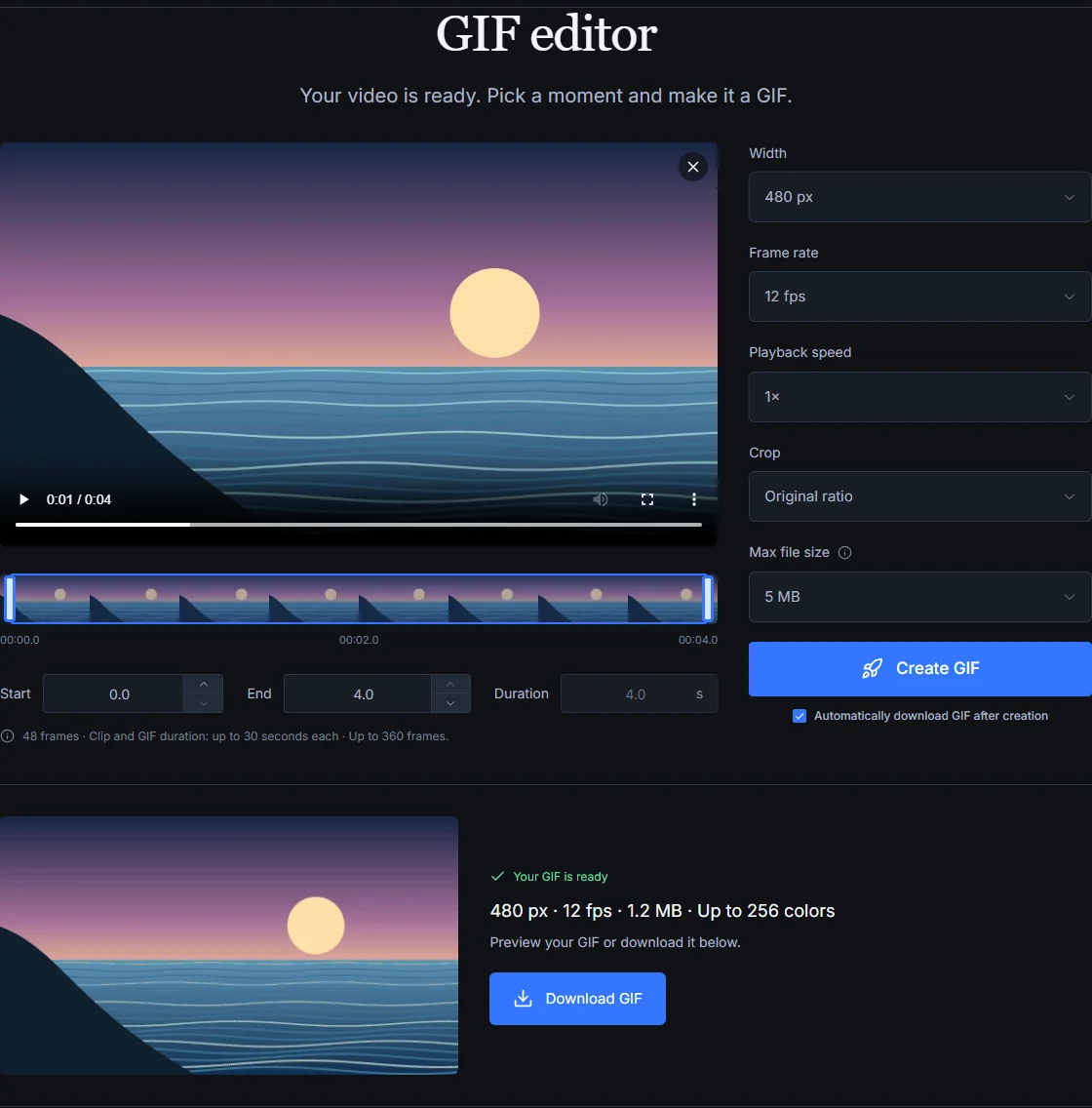
Leave room for strict upload limits. The option labeled 5 MB uses 5 × 1,024 × 1,024 bytes. A service that defines its limit as exactly 5,000,000 bytes can reject a result near that ceiling. Check the saved file’s byte size against the destination’s rule, or choose the 2 MB option for extra room.
Common questions
Can I make every GIF smaller without losing quality?
No. Reducing dimensions, color detail, or frame rate trades some information for fewer bytes. Removing unwanted time can preserve the appearance of the remaining moment, but it still changes the animation. Keep your original file and compare the result at the size people will actually view it.
Will 2× speed make the file half as large?
No. This editor changes frame timing when you change playback speed. It does not halve the sampled frame count. Shorten the source selection or lower frame rate to remove frames.
Does re-exporting an existing GIF always reduce its size?
No. A source GIF may already use efficient compression, and re-encoding it can produce a larger result. Compare the saved bytes rather than assuming conversion is an improvement. Existing transparent GIFs also export with a white background here.
What if GIF is still too large?
If the destination accepts video, consider using your original MP4. For a supported social post, Download video saves the available source video. GIF Downloader does not offer a GIF-to-MP4 export, so retain that source if you may need it later.
Put the guide into practice.
Open a file or paste a supported public post link. No account needed.
Open GIF Downloader →